
If you’ve ever tried making a YouTube thumbnail, a blog featured image, or even a simple Instagram post, you know how frustrating it can be. The photo looks blurry, the background is messy, and you don’t have Photoshop skills (or time to learn). That’s why free AI tools for image editing and graphic design have become so popular in 2026.
When I tested these tools for my own blog images, I noticed something important: you don’t need “professional design skills” anymore. You just need the right workflow and a few free tools that handle the boring parts—background removal, enhancement, resizing, and quick design layouts.
This guide covers the best tools that beginners, students, bloggers, and freelancers can use without spending money.
Why People Need Free AI Tools for Image Editing and Graphic Design
Most people don’t struggle because they’re “bad at design.” They struggle because editing takes too long.
Here’s what free AI tools solve quickly:
Speed:
AI can remove backgrounds, enhance quality, and fix lighting in seconds.
Beginner-friendly results:
Even if you don’t know layers, masks, or advanced tools, you can still get clean results.
Social media demand:
If you post regularly, you need graphics constantly—thumbnails, posts, banners, and story designs.
Freelancing and client work:
Freelancers often need fast edits for product images, ads, or profile designs.
Saving time and money:
Instead of paying for Photoshop or hiring a designer, you can do 80% of the work yourself.
Best Free AI Tools for Image Editing and Graphic Design (2026)
Below are the best free AI tools for image editing and graphic design that actually work for real people. I’m also mentioning the limitations honestly, because many tools advertise “free” but lock important features later.
1) Adobe Express (Free Plan)
What it is:
Adobe Express is Adobe’s beginner-friendly design tool. It’s like Canva, but with Adobe’s polish.
How people use it:
- Creating thumbnails
- Designing Instagram posts
- Quick resizing for social platforms
- Removing backgrounds on images
Realistic example:
A blogger needs a featured image for a post. They upload the image, remove the background, add a clean title area, and export in the correct blog size.
Key free features:
- Templates for social posts and banners
- Basic AI background remover
- Resize for multiple platforms
- Clean export options
Free limitations (honest):
Some templates and premium assets are locked. The free plan is still strong for basic design.
Best use case:
Fast social media designs and clean thumbnails.
Official link: Adobe Express
2) Photopea (Free Photoshop Alternative)
What it is:
Photopea is a browser-based Photoshop alternative. It’s surprisingly powerful and runs without installing anything.
How people use it:
- Editing PSD files
- Removing objects manually
- Layer-based image editing
- Designing banners and thumbnails
Realistic example:
A freelancer receives a PSD file from a client. Instead of buying Photoshop, they open it in Photopea and edit the text, colors, and layout.
Key free features:
- Works with PSD files
- Layer support
- Advanced editing tools
- Runs in browser
Free limitations:
It’s ad-supported. Also, it’s not “AI-heavy” like other tools, but it’s still one of the best free graphic design tools for beginners.
Best use case:
People who want Photoshop-style control for free.
Official link: Photopea
3) Pixlr (Free Tier)
What it is:
Pixlr is an online photo editor with a simple interface and AI-based features.
How people use it:
- Quick edits
- AI background removal
- Filters and adjustments
- Social post images
Realistic example:
A student needs a clean poster image for a project. They use Pixlr to remove the background, add effects, and export a sharp PNG.
Key free features:
- Basic AI background remover
- Filters and color correction
- Simple design tools
- Works on mobile browsers
Free limitations:
Some features are limited daily, and premium tools requires upgrade.
Best use case:
Quick editing without learning complex software.
Official link: Pixlr
4) Canva (Mention Briefly)
What it is:
Canva is the most popular design tool for beginners, and its free plan is still very useful.
How people use it:
- Thumbnails
- Social media posts
- Posters and banners
- Blog featured images
Realistic example:
A new YouTuber creates a thumbnail template once, then reuses it for every video.
Key free features:
- Thousands of free templates
- Easy drag-and-drop design
- Basic image editing
- Export to PNG or JPG
Free limitations:
Many templates and elements are Pro-only. AI tools are limited in free plan.
Best use case:
The easiest tool for beginners who want fast results.
Official link: Canva
5) Remove.bg (Free Limited)
What it is:
Remove.bg is a dedicated AI background remover.
How people use it:
- Removing background from portraits
- Product photo cutouts
- Profile picture cleanup
- Thumbnail subject isolation
Realistic example:
A freelancer is creating a product ad. They remove the background from the product photo in seconds, then place it on a clean background.
Key free features:
- One-click background removal
- Clean edges on hair and objects
- Fast processing
Free limitations:
Free downloads are often lower resolution. HD downloads require paid plan.
Best use case:
Fast, accurate background removal.
Official link: Remove.bg
6) Fotor (Free Tier)
What it is:
Fotor is a photo editor that includes AI enhancement, filters, and design templates.
How people use it:
- Fixing blurry images
- Enhancing lighting
- Creating social graphics
- Quick retouching
Realistic example:
A blogger has a low-quality photo for a post. They enhance it using Fotor, sharpen it, and export it for web.
Key free features:
- AI photo enhancer
- Basic retouching
- Filters and presets
- Simple design templates
Free limitations:
Some AI tools require premium credits. Free version works best for basic enhancement.
Best use case:
AI image enhancer free-style editing for everyday photos.
Official link: Fotor
7) Playground AI (Free Credits)
What it is:
Playground AI is a text-to-image generator. You can create images from prompts.
How people use it:
- Blog illustrations
- Thumbnail backgrounds
- Social media graphics
- Abstract AI-themed visuals
Realistic example:
A blogger writes about AI tools and needs a clean illustration. They generate a minimal design and use it as a featured image.
Key free features:
- Free daily credits
- Multiple art styles
- High-quality output options
- Easy prompt testing
Free limitations:
Credits are limited. Heavy users need paid plan.
Best use case:
Creating custom images when you don’t have photos.
Official link: Playground Ai
8) Upscale.media (Free Image Upscaler)
What it is:
Upscale.media improves image resolution using AI.
How people use it:
- Fixing blurry images
- Upscaling thumbnails
- Improving old photos
- Making images sharper for print
Realistic example:
A student has a low-resolution image for a presentation poster. They upscale it and the final print looks much cleaner.
Key free features:
- AI upscaling
- Sharpening
- Simple upload/export workflow
Free limitations:
Free tier may limit number of images per day or resolution.
Best use case:
Making low-quality images usable again.
Official link: Upscale.media
Comparison Table
| Tool | Best For | AI Features | Ease of Use | Best Output Type | Free Limit Notes |
|---|---|---|---|---|---|
| Adobe Express | Thumbnails + social posts | Background remove, smart design | Easy | PNG/JPG | Some assets locked |
| Photopea | Photoshop-style editing | Limited AI | Medium | PSD/PNG/JPG | Ads, no heavy AI |
| Pixlr | Quick edits | AI background, filters | Easy | JPG/PNG | Some tools limited |
| Canva | Templates + fast designs | Limited AI in free plan | Very easy | PNG/JPG/PDF | Pro elements locked |
| Remove.bg | Background removal | Very strong | Very easy | PNG | HD downloads paid |
| Fotor | Photo enhancement | Enhancer, retouch | Easy | JPG/PNG | AI credits limited |
| Playground AI | Generate new images | Text-to-image | Medium | PNG | Free credits limited |
| Upscale.media | Improve quality | Upscaling, sharpening | Very easy | JPG/PNG | Usage limits |
How to Create Professional Graphics Using AI (Step-by-Step)
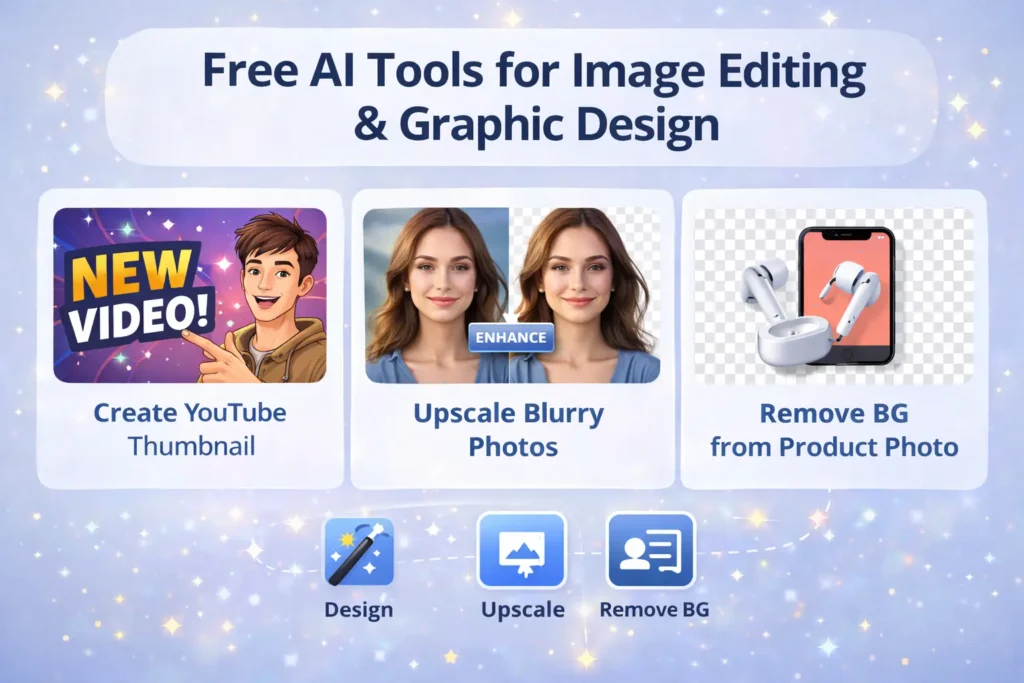
If you want consistent results, use this simple workflow.
Step 1: Pick your goal
Decide what you’re making:
- YouTube thumbnail
- Blog featured image
- Instagram post
- Poster for college
- Client banner
Step 2: Choose the correct size
This is where beginners mess up. Use:
- YouTube thumbnail: 1280×720
- Blog featured image: depends on theme (often 1200×630)
Step 3: Remove background (if needed)
Use Remove.bg, Pixlr, or Adobe Express.
Step 4: Improve quality
If the image is blurry:
- run it through Upscale.media
- then adjust brightness in Fotor/Pixlr
Step 5: Add clean text (use Canva/Express)
This is where Canva or Adobe Express shines.
One thing I noticed: even average images look professional when the text is clean and spacing is balanced.
Step 6: Export + compress
Export in:
- JPG for photos
- PNG for designs with sharp edges
Then compress for fast loading.
Common Mistakes Beginners Make With AI Design Tools
Here’s what usually ruins good designs:
- Too much text on thumbnails or posts
- Bad contrast (light text on light background)
- Using low-quality images and not upscaling
- Overusing filters until the image looks fake
- Choosing the wrong size and getting blurry exports
- Not compressing images, which makes websites slow
FAQs
Are free AI tools for image editing and graphic design safe?
Most well-known tools are safe, but you should avoid uploading sensitive personal documents. Use trusted platforms and don’t share private data.
Which tool is best for YouTube thumbnails?
For most beginners, Canva or Adobe Express are easiest. If you want more control, use Photopea.
Can these tools replace Photoshop?
For 80% of normal users, yes. But for advanced professional work, Photoshop still has more depth.
What image format is best (PNG vs JPG vs WebP)?
JPG: best for photos (small size)
PNG: best for sharp designs and transparent backgrounds
WebP: best for websites (small + good quality)
What is the best AI background remover free option?
Remove.bg is the fastest, but Pixlr and Adobe Express also work well in free plans.
Conclusion
If you’re trying to improve thumbnails, blog images, or social media posts without learning complicated design software, these free AI tools for image editing and graphic design are honestly enough for most people in 2026.
Best overall for beginners: Canva or Adobe Express
Best for background removal: Remove.bg
Best for thumbnails + layered editing: Photopea
If you also create YouTube content, you may like our guide on free AI tools for YouTube script writing. And if you’re freelancing, check free AI tools for freelancers to find work without credit card.
The best results come from combining tools: remove background, enhance quality, then design clean layouts.