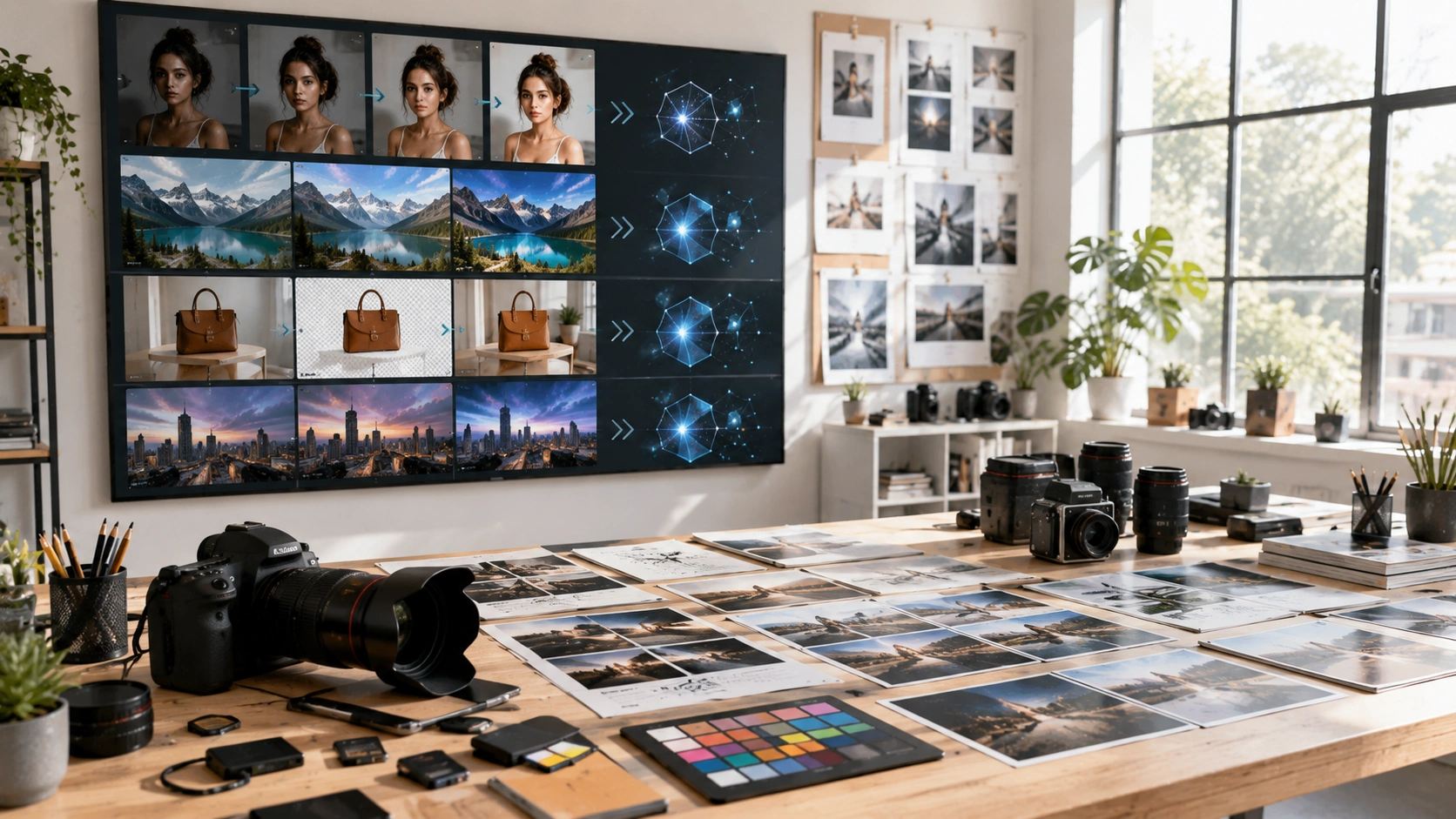
Hey there, I’ve spent the better part of a decade wrangling photos from chaotic wedding shoots in rainy backyards to sleek product gigs for e-commerce brands. Back in the day, editing meant hours hunched over Photoshop, dodging layers and masks like a digital ninja. But AI photo editors? They’ve flipped the script. These tools use machine learning to automate the grunt work, spotting flaws, enhancing colors, and even generating elements from thin air. If you’re a hobbyist snapping family pics or a pro chasing that perfect feed, AI photo editors like Luminary Neo, Adobe Photoshop’s Neural Filters, or freebies like Photopia with AI plugins are game-changers. Let’s dive deep into how they work, what they can (and can’t) do, and how to weave them into your workflow without losing your creative soul.
The Magic Under the Hood: How AI Photo Editors Actually Work
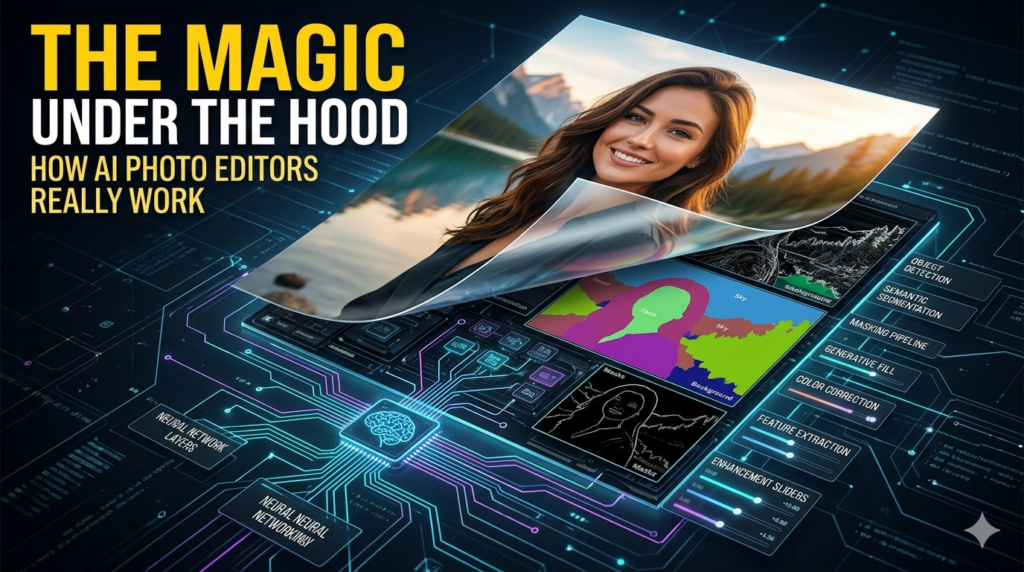
At their core, AI photo editors rely on neural networks trained on millions of images. Think of it like this: the AI has seen every sunset, portrait pout, and overexposed beach snap imaginable. When you upload a photo, it analyzes pixel patterns, edges, lighting, and semantics in seconds. Take sky replacement, a staple feature. Tools like Luminary Neo or Topaz Photo AI detect the sky region using semantic segmentation basically, the AI draws an invisible mask around clouds and horizons. Then, it swaps in a hyper-realistic alternative from its library or generates one via diffusion models (the same tech powering DALL-E). I remember editing a dull corporate headshot last year; one click in Photoshop’s Neural Filter turned a gray skyline into a golden-hour glow, saving me 20 minutes of manual blending.
Face enhancement is another powerhouse. AI detects facial landmarks eyes, nose, mouth with pinpoint accuracy, then applies relighting, skin smoothing, or even age regression. During a recent portrait series for a magazine, I used Remine to upscale low-res client selfies. The results? Powerless skin that looked natural, not plastic, because modern algorithms balance enhancement with realism, avoiding the uncanny valley. But it’s not all wizardry. These tools shine in batch processing too. E-commerce pros love Remove.bg for instant background knockout AI isolates subjects via edge detection and inpainting fills the void seamlessly. I’ve batched hundreds of product shots this way, cutting turnaround from days to hours.
Top AI Photo Editors in 2024: Picks from Real-World Testing
From my hands-on tests across platforms (Mac, Windows, mobile), here’s the rundown on standouts. I prioritize ease, output quality, and price—because who has time for clunky software?
- Luminary Neo (Skyla): My go-to for landscapes. Its AI Sky AI and Relight AI are uncannily smart. Price: $79/year. Pro tip: Use the “Accent AI” slider for one-knob exposure fixes perfect for quick social media tweaks.
- Adobe Photoshop with Generative Fill: If you’re in the Creative Cloud ecosystem ($20/month), this Firefly-powered beast lets you “erase” objects and AI-refill spaces contextually. Case in point: A client wanted a busy street shot cleaned up. I selected a distracting pedestrian, typed empty sidewalk, and boom flawless. It’s ethical magic, trained on licensed Adobe Stock images.
- Topaz Photo AI: Upscaling king for noisy or low-res files. Denoise, sharpen, and recover details from phone snaps. I restored vintage family albums for a project; 4x upscales looked printed-ready. $199 one-time.
- Free Options: Canva’s Magic Studio or Pixlr’s AI tools handle basics like auto-enhance and object removal without costing a dime. Great for beginners, but pros might hit limits on advanced control.
- Mobile Stars: Snapseed (Google) and Picsart pack AI punch for on-the-go edits. Snapseed’s Healing tool zaps blemishes like a surgeon.
Comparisons? Luminar feels more intuitive for creatives dodging Adobe’s learning curve, while Topaz crushes technical fixes. Emerging players like Imagen (Google’s) and Midjourney’s editor integrations hint at web-based futures, but desktop still rules for precision.
Hands On Workflow: From Raw Snap to Stunner
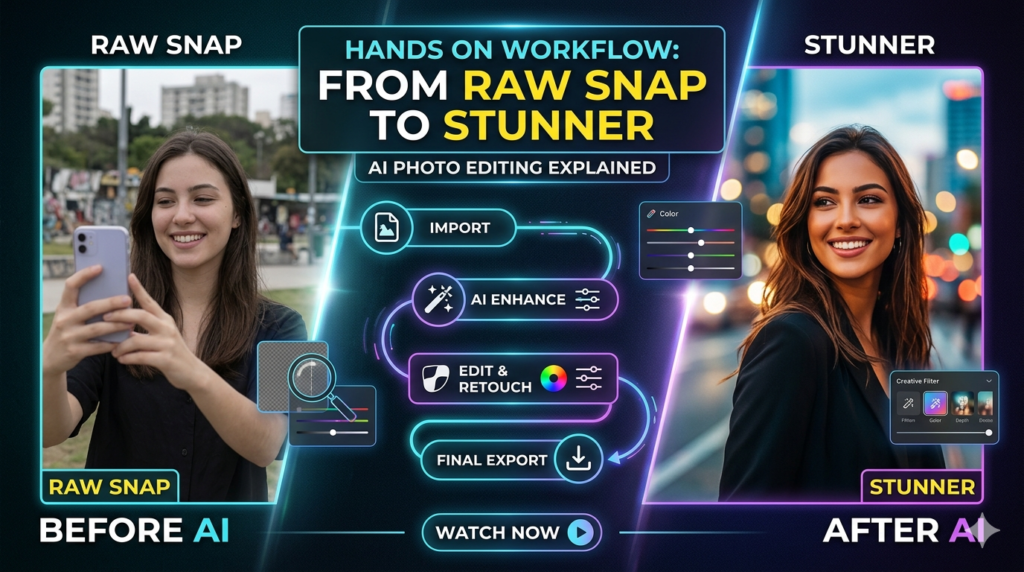
Let’s walk through a real edit I did last week a foggy morning hike photo that screamed drab.
- Import and Auto-Assess: Drop into Luminar Neo. AI Suggest scans and proposes fixes: +20% exposure, boost greens.
- Sky and Structure: Swap the blah sky for dramatic clouds. AI Structure enhances details without haloing.
- Local Edits: Mask the foreground with AI-powered brushes for selective sharpening hike boots pop.
- Portrait Polish (if people): Face AI evens skin, enlarges eyes subtly.
- Export: Batch to JPEG/WebP, optimized for web.
Total time: 3 minutes vs. 30 manually. Ethical note: Always disclose heavy AI use in pro work clients appreciate transparency, and it builds trust.
The Double Edged Sword: Pros, Cons, and Pitfalls
AI photo editors democratize pro results, but they’re no silver bullet. Strengths? Speed, consistency, accessibility my non-techy cousin now edits vacay pics like a boss. Drawbacks hit hard. Over-reliance kills skill-building; I’ve seen AI-only shooters produce soulless, cookie-cutter images. Artifacts creep in ghosting on moving subjects or color shifts in complex scenes. Privacy matters too: Uploading to cloud tools shares data, so check policies (Adobe anonymizes, but read fine print).
Ethical tightrope: Deepak’s from face-swaps raise consent issues. Use responsibly never fabricate endorsements. Legally, tools trained on public data face lawsuits (e.g., Getty vs. Stability AI), so expect watermarking mandates soon. Limitations? AI struggles with abstract art or intentional blur (like motion bokeh). Fine-art photographers I know layer AI lightly, blending with manual tweaks for soul.
Future Proofing Your Edits: Tips from the Trenches
Stay sharp: Combine AI with fundamentals exposure triangle, composition. Experiment hybrids: AI for 80%, hands for 20%. Track updates; 2024’s brought video AI extensions in Capco and Runway. Budget-wise, start free, scale up. For SEO-optimized stock, AI batching skyrockets output. In my view, AI photo editors aren’t replacing photographers they’re amplifiers. Embrace them, but keep your eye behind the lens.
FAQs
Q: What’s the best free AI photo editor?
A: Pixar or Canvas’s Magic Studio solid for basics like remove background and auto-enhance.
Q: Can AI photo editors replace Photoshop?
A: Not fully; they’re faster for automation but lack Photoshop’s granular control.
Q: Are AI edits detectable?
A: Often not to the eye, but tools like Hive Moderation spot them. Watermarks are coming standard.
Q: Is it ethical to use AI for client photos?
A: Yes, with disclosure. Avoid misleading alterations.
Q: How do I avoid AI artifacts?
A: Use high quality inputs, refine manually, and test multiple tool
